
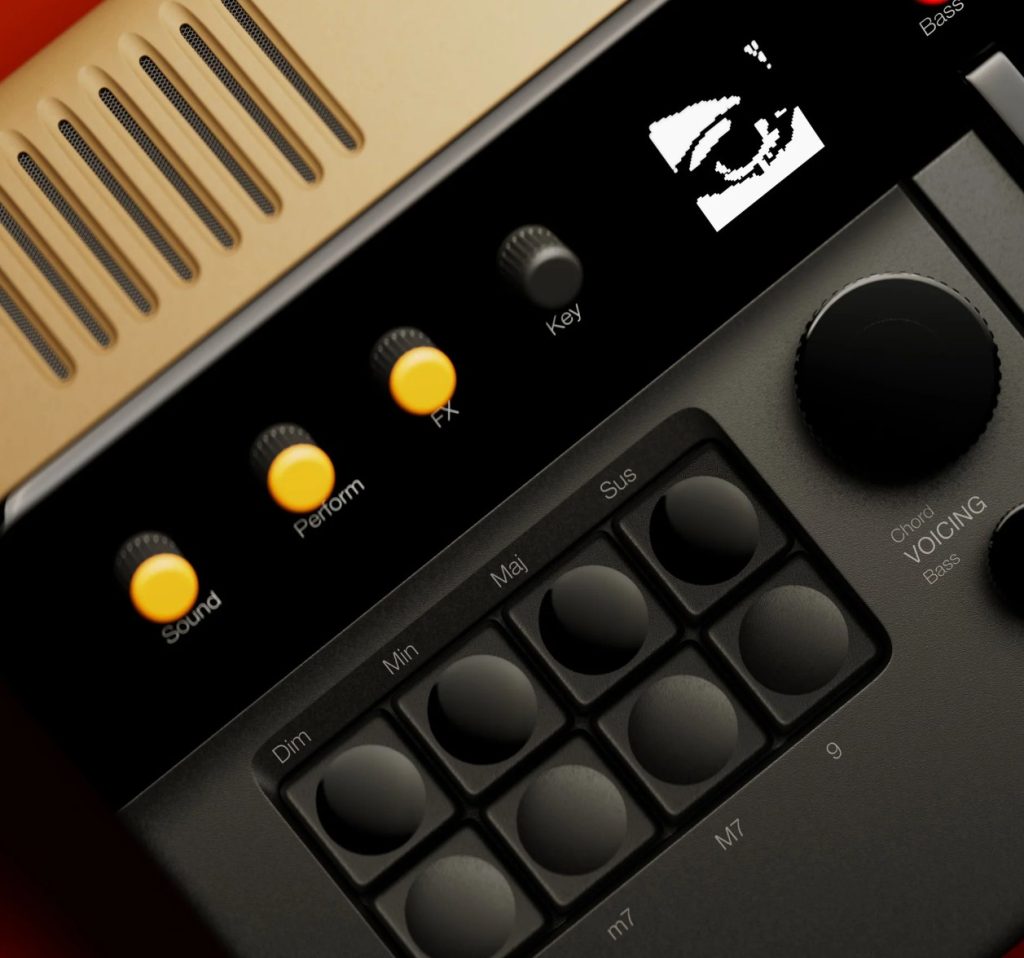
This is a midi controller patch inspired by telepathic instruments orchid and plays similarly.
The first three pages are the UI. The three pages after that are advanced features. The patch has tons of potential for more features
Requires you to connect a Zoia midi output to a midi instrument, I recommend one with polyphony
Currently sending midi notes out on channel 3! Read further to learn how to change midi note channel.
Fully playing this patch requires you to push multiple buttons simultaneously, for this reason there is a performance mode toggle on the first page
– Optionally you can use the Zoia’s audio output for Bass which uses the sampler module
– Also, optionally you can receive midi clock in to synchronize the arpeggiator to other sources
The page that you play from is a keyboard with chord buttons and extension buttons
Chord buttons Dim, Min, Maj, and Sus can be held down to change the notes outputted by midi accordingly(there is also a chord latch mode)
– You are really only meant to use one chord at a time but I didnt program any safety to stop you
Any combination of extension buttons can be pressed simultaneously and it works as far as all my testing goes
The sequencer based arpeggiator is where this patch really shines, it is statically sequenced with multiples of 4 notes, and the arp changes dynamically based on which chord, extensions, and keyboard note you press
The arp has octave ranges of 1 octave, 2 octaves, and 4 octaves
Arp has modes: Up, down, up and down, down and up, random, and custom
Arp speed can be set to: internal(tempo value module), midi clock quarter note, midi clock 8th note, midi clock 16th note
– For internal clock, if you want to double the speed of the arp, just double the value on the tempo control
The arp is affected by the Voicing knob on the front page
– Turning up the voicing knob adjusts where the beginning and ending point is for the arpeggiator
– For example, if you are doing 1 octave Up arpeggiator with the Maj chord selected and the 7th extension selected for note C, the default voicing would be C E G B. Turning up the voicing would change it so the arp now plays E G B C. Turning it up more would change it to G B C E, etc… This works for 8 octaves total for all arp modes.
– Note: no upper bound on the Voice knob, so turning it up too much will just play +8 octave high notes
– Voice knob does not affect chord mode
– Im sure its possible to implement
When controlled by midi clock, there is a synchronization mechanism.
– Certain controls in this patch will cause the arp to go out of synch, like changing arp modes, changing arp octaves. The synch mechanism is really nice for this.
– If you change the tempo sent to Zoia, the arp will be out of synch for some moments but re-adjust peridically(this is configurable)
Control panel layout:
The first page(page 0) has the Blue performance mode push button. Push this button before playing or you will break the patch
The keyboard module at the bottom, feel free to set the notes to whatever you need
The chord buttons are the the four buttons at the top and there is a light the shines when selected
The four buttons below the chord buttons are the extensions, multiple can be held simultaneously
Next to the performance mode button is a Voicing value, this only works for the Arp, but increasing it will increase the voicing your arp plays, but retain the chord and extensions you are playing
Page One
The row of three buttons are the following pushbuttons:
– Arp on
– Arp latch (I recommend having “Arp On” for this)
– Chord latch
The row of seven buttons at the bottom are Knobs(value modules) for:
– Tempo (ignored if synch to clock)
– Transpose – Default should be C3
– Velocity (The two velocity values here are ignore if you are using a custom velocity track)
– Velocity Randomize
– Input audio mix
– Bass level
– Bass transpose
Page Two arp options:
These are switches, change the channel of each to change:
– Arp type:
– Up/down, up, down, random, custom
– There is a pushwitch option here to change the up/down to a down/up, idk might change this later
– Arp Octave:
– 1x, 2x, 4x
– Clock:
– Internal Tempo value, midi quarter note, midi eighth note, midi sixteenth note
Page Three is the Arp sequencer
– Coming here and observing is good for getting a feel for how the patch functions, and it will give you ideas on how to make your own arps
Page four is the custom Arp sequencer
– This sequencer is ignored unless the Arp type on page Two is set to Custom
– Think of the arp sequencer on page Three as the Master Arp sequencer (cv step mode) driven by different LFO shapes. Driving the position of the Master sequencer with a seperate sequencer is how custom arps are created
– So the values in the Custom arp sequencer represent the position the master sequencer will be in
– If you want your sequence to be 4 notes, edit the module and set the lenght to 4. In my experience, changing the lenght back to a longer sequnce retains the values you had in them prior
– Try a long sequence! while I havent tested super long sequences, I have no reason to think several pages will cause issues
– Since the master sequencer is 32 notes long, positions have a width of about 1/32: Position 1 is 0-.0312, 2 is .0313-.0624, 3 is .0626-.0.0927 Etc…
– If you want to find what the cv value is for a sequencer position, go to the master sequencer, select the cv input, add bias to it and watch the LED move through the positions
– Do not sleep on trying the voice knob while playing your custom arps!
Page five is the custom Velocity sequencer
– Set a sequence of values here for much velocity you want to be applied to the midi notes out
– Try setting certain positions to 0 to drop out notes = super rhythmic arps!
Page six has switches for changing between Custom Arp tracks and Custom Velocity tracks
– To create a new arp sequence without overriding an existing custom sequence:
– Edit the custom arp sequencer module and add a new track
– Edit the custom arp switch module and add a new input
– Connect the new arp track output to the new switch input
– The same for custom velocity tracks
– Since we can create custom arp sequences and custom velocity tracks, what else should be modulated this way? mod wheel? lots of fun midi potential here
How it works:
Chord mode is fairly straightforward, there is a dedicated midi note for each semitone offset required. So the keyboard module note output is sent to all the midi note out modules.
The adsr trigger is always sent to the root midi note out, but its only sent to the other biased midi note outputs if the relevant chord or extension button is held.
– Mostly just dedicated multipliers and values
Arp mode magic comes from the sequencer, specifically set in cv step mode
– The sequencer is 32 steps total, each 8 steps represents 2 octaves in ascending order, so 8 octaves total
– Locations in the sequencer are biased in a musical order
– with no chords or extensions, the sequence is A0, A0, A0, A1, A1, A1, A1, A2
– The rest of the sequencer is identical, but +2 octaves per row
– Holding down the Major chord, for example, dynamically augments the sequence to A0, C#1, E1, A1, A1, C#2, E2, A2
– Again, these biases are mapped to the rest of the sequencer octaves idenctically
– Chord buttons always bias position 2,3. By default positions 6 and 7 are also biased by the chord buttons, but if you hold enough extensions, the extension biases are preferred over the chord bias.
– The extension 6, m7, M7 by default bias position 4 and 8
– The logic prefers musical ascending order so the 9th extension actually adds its bias to the 5th spot by default.
– Pressing multiple extension buttons bumps the position of the higher note(s) to the right
– Example: 6th extension always affects position 4, but while held, the next extension will bias position 5, the third extension will bias position 6, overriding the bias from any chords held
– This is just a lot of input switches, output switches, and some logic gates and its a lot of this patch’s ‘spaghetti code’
– A cv step sequncer means that the position of the sequncer is equal to the cv value on input
– So a ramp lfo driving the sequncer goes forward
– This is how Arp modes and octaves are implemented
– A Ramp wave with 1/8th connection strenght to the sequncer goes for four notes, one octave up
– Changing the cv strength to 1/4 is 8 notes, two octaves
– A sawtooth wave is a down arp
– A triangle wave is a down/up arp
– A triangle wave with phase set to 180 is a up/down arp
– Adding a CV value bias to the sequencer position is how Voicing is implemented
– A bug here is that if you use Voice to offset the beginning sequencer, its possible to have this value kinda in-between sequencer spaces and it makes the midi note out play both notes simultaneously. Its can be cool
– Driving the cv step sequencer with another sequncer is kinda like a custom stepped lfo
– Set the sequencer length to how many steps you want, multiples of four are recommended and there’s no reason you cant use the page feature on the sequencer for super long complex arps.
– MIDI Clock users, Heads up, if you wanna do a custom arp longer than 16 notes, change the sequencer on page 17 to match the length, or make it a multiple like 2x or 3x
– This same concept is relevant if you want to do other time signatures like 3 note or 5 note custom arp sequences
– There is a MIDI Clock page – 17
– A sequencer here hits the phase reset on all relevant LFOs and sequencers every 16th midi clock beat (unless arp speed is set to internal Tempo)
– This prevents arp drift from the external clock
– Also things like changing the arp octave or type will cause your LFOs to be out of synch, which is fixed by this mechanism
– You can change the tempo of your midi clock and the arp will be in time after a few moments
– This page is set up for passing clock thru as well but I have not used or tested this functionality
– The beat modifier provides midi eighth note and midi sixteenth note functionality by using a couple extra midi clock in modules, each set with different beat modifiers
– While 2X arp speed doesnt feel spot on imo, 4X usually goes so fast that it feels close enough
– If anyone has any ideas on how to approach this differntly, please try
The Audio page uses a sampler for the bass, which is actually really cool
– Though it could be removed to free up substantial compute resources
– I would also be interested in swapping out the sampler for an oscillator if anyone knows any good bass sounds in Zoia
– The audio input module I just think is a nice feature to have. If I am already using audio out for Bass, I can mix in my drum machine audio here and reduce the input usage on my audio interface
– Try passing the audio from your midi instrument through zoia and see if you can squeeze any processing for effects!
– Another cool idea would be to implement a looper, maybe synchronized in a user friendly way?
To change the midi out channel, edit the midi note out module on the middle of page 11. Thats for the ARP, to chagne the channel for chord mode, youll need to do the same for the rest of the 10 midi note out modules on that page and the following.
Have fun!
